

If you are a business looking to use bookkeeping software, the most well-known is QuickBooks Online.
It provides the user with a simple financial overview. However, navigating the dashboard within QuickBooks Online is not without its headaches.
Simple does not always equal easier. It is, however, much more advanced than recording finances in a ledger or spreadsheets.
But the question most newcomers ask is what is all this stuff in the dashboard. So in this post, I will look at a few things.
- The interface now vs back when
- Highlights of the dashboard
- The types of subscriptions
- Bookmarking and customizing
- Changing settings and personalizing the look
- Pros and Cons of the QBOs dashboard
- How creatives can take advantage of QBO strategically
The Dashboard: Your Navigation Hub
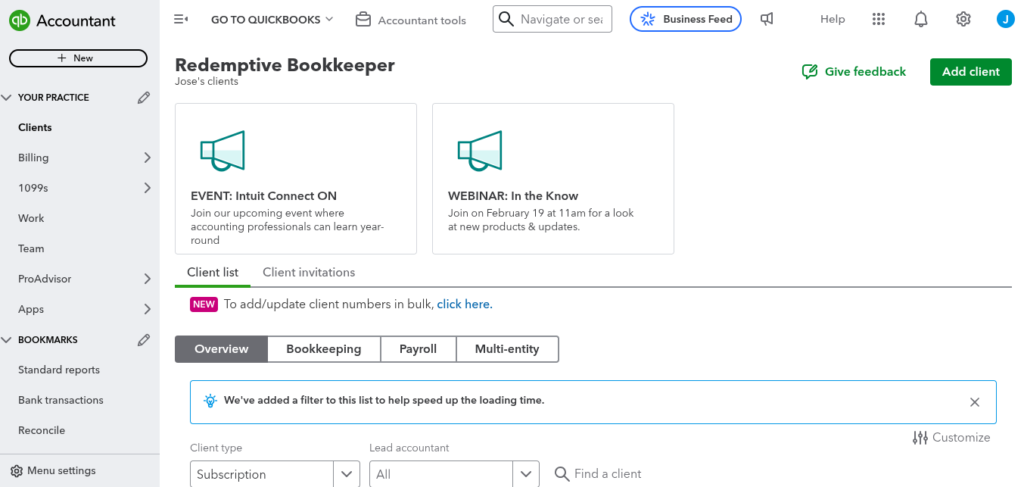
Major corporations have more advanced systems. They have income coming in consistently.
Smaller businesses, however, are totally different business structures.
Here is the type of revenue your business might have.
- Services
- Sponsorsips
- Ad revenue
- Digital products
- Affiliate commissions
- Merchandise
- Brand deals
Business is constantly shifting as audience attitudes change.
Learning how to navigate QBO like a pro has advantages for your business.
Here are some questions that knowing how to use QBO can help answer.
- Did your product or service increase profit?
- Even with the costs of ads, are your products earning a profit?
- How is your cash flow looking from day to day or month to month?
- Is coaching covering the cost it takes to sell?
If you can’t navigate the dashboard, you’ll never know the answers to these critical questions.
Differences in the Old vs the New QBO interface
Over the years, QBO has gone through lots of changes. Depending on how long you have used it, you have seen some major shifts over the years.
Let’s explore how QBO has changed.
The Interface Back in the Day
Some major changes have been made to the dashboard.
Take, for example, Bookkeeping For Dummies. Great book! The version I own uses dated software examples.
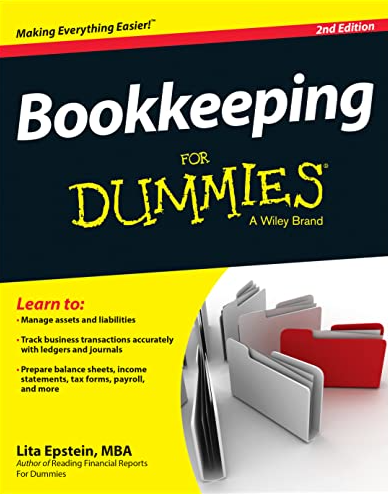
So what has changed?
- The visual layout
- Access to modules (Sales, expenses, transactions, etc.)
- AI automation
- Navigating the dashboard
The new interface is far superior to the version in Lita Epstein’s 2014 book. Lucky for creatives like yourself, QBO is much simpler than ever.
The interface: updated for modern users
Here’s why the new version is much sexier.
- Income and expenses make more sense
- Linking bank feeds is faster
- Buttons make the process faster
- More visual than previous versions
What can you see in QBO’s updated versions? Here’s a snapshot of some things.
- Tasks and reminders
- Overview of expenses
- Your account balances
- A profit and loss statement
While the new interface has changed, users might get a bit lost. But overall, it is by far better than older versions.
Getting the hang of QBO’s Layout
After logging in to your QBO account, you will be taken to the dashboard.
Once there, here’s what you’ll see.
Overview of Income and Expenses
This area shows you a snapshot of:
- Total income
- Total expenses
- Snapshot of profit
- Time-based graph
It should be noted that not all QBO subscriptions are the same.
Your dashboard may not reflect this when you log in.
But it does provide an overview of what is going on in your books.
Snapshot of Your Bank Account
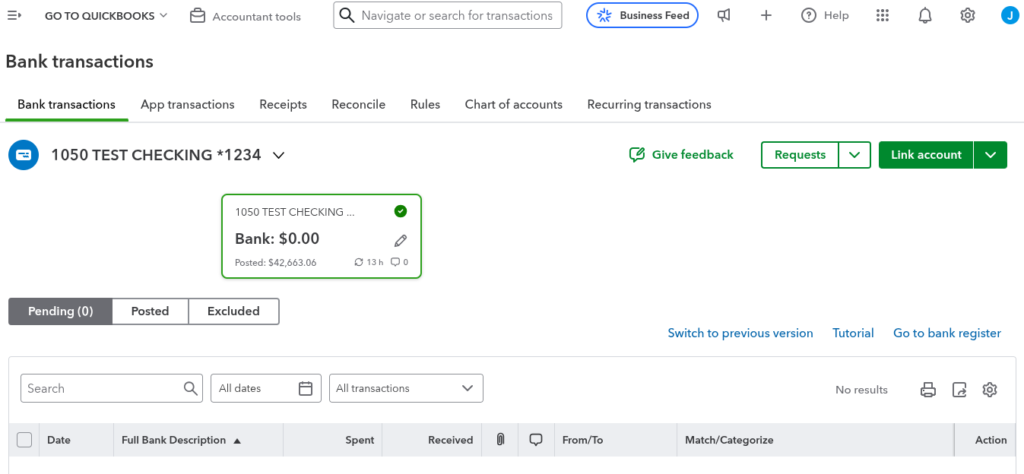
Depending on your connected account, here’s what you’ll see:
- Your current balance
- Any pending balances
- Items that need to be categorized
Having all your transactions here can make it much simpler to organize.
You’ll be less likely to miscategorize once you get the hang of the dashboard.
What You Need To Do: Reminders & Tasks
Again, every subscription is different. But regardless, you might see this:
- Bills you need to pay
- Your overdue invoices
- When you need to reconcile
Reminders are powerful tools that can help you keep up with tasks needed to perform well financially.
Taking Shortcuts in QBO
Some don’t really take advantage of the simple interface QBO has. Bookmarks are one of them.
Here are some things you can bookmark to make life easier:
- Chart of Accounts
- Bank Reconciliation
- Reports you run often
- Invoicing Tools
- Recurring Transactions
It can be hard to look for important tabs in the dashboard. But bookmarks and shortcuts can make it easier.
Types of Subscription Available to Users
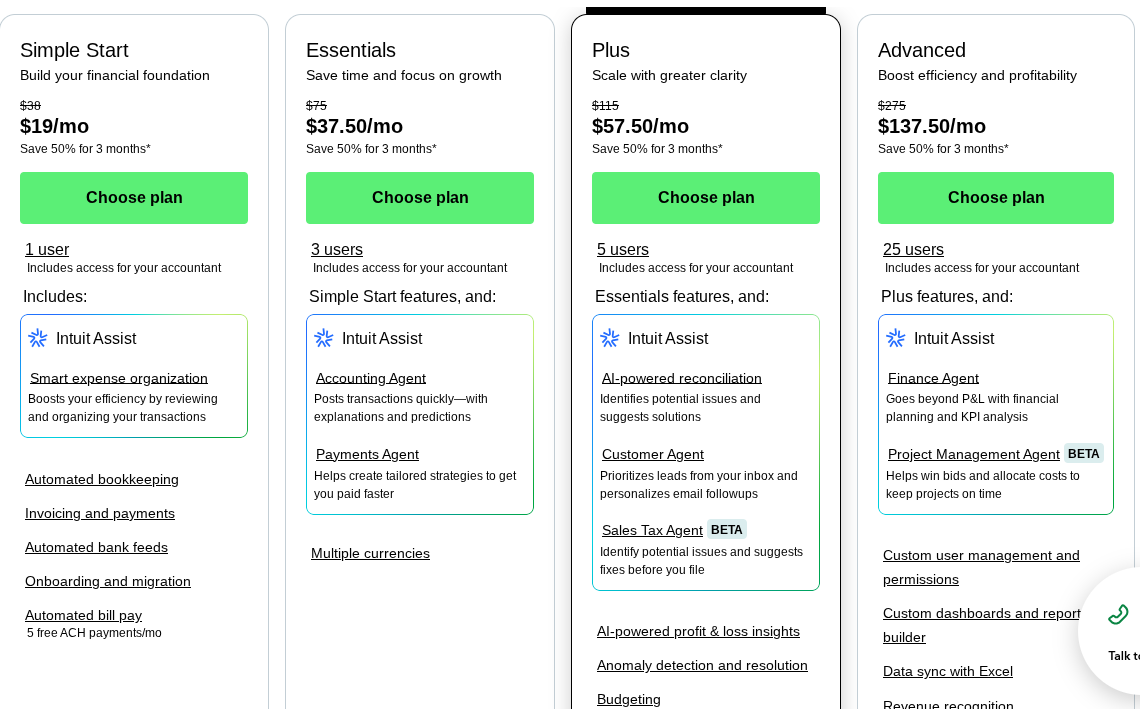
QuickBooks Online has several plans available. Which one you use depends on your business needs.
Simple Start the Most Basic Plan
If you are a solo business owner or an LLC, then this is perfect for you.
It includes things like:
- Basic reports
- Single user access
- Income and expense tracking
But it is limited in these ways:
- Has fewer reporting features
- Automation is limited
- Doesn’t track projects
If you are a business with simple income streams, this is perfect for you.
QBO Essentials For More Complex Creatives
Maybe you have more complex business needs, then it’s time to level up with Essentials.
It includes things like:
- Multiple users
- Time tracking
- Bill management
It is best for the following:
- You are an agency
- If you hire a contractor
- Maybe you have a VA
Then this may be a better option over the simple start plan.
Plus the Sweet Spot For Small business
In some cases, you may need more than just the essentials package. You may need a plus package.
It includes things like:
- Inventory
- Budgeting tools
- Project tracking
Again, you may not need this package if you don’t have products or more complex projects.
But if you do, here is why the project tracking is nice to have.
- It measures ROI for every collaboration
- Shows your profit per campaign
- Analyzes course launch profitability
Plus is not the most advanced QBO package.
The Most Advanced QBO Package
Most likely, you are never going to need this package. Unless your business grows too large for the other packages.
If so, here is what it includes:
- More automation
- Custom reporting
- Advanced analytics
- Custom user permissions
But again, since most online creatives are solo or have a few people working under them, the most advanced package they will need is Plus.
Now the Fun Begins… Let’s Customize Your Dashboard
Before, I just discussed the layout and specific QBO packages. Now it is time to do some work.
Time For Some Adjustments
In the upper right corner, you will see a gear icon.
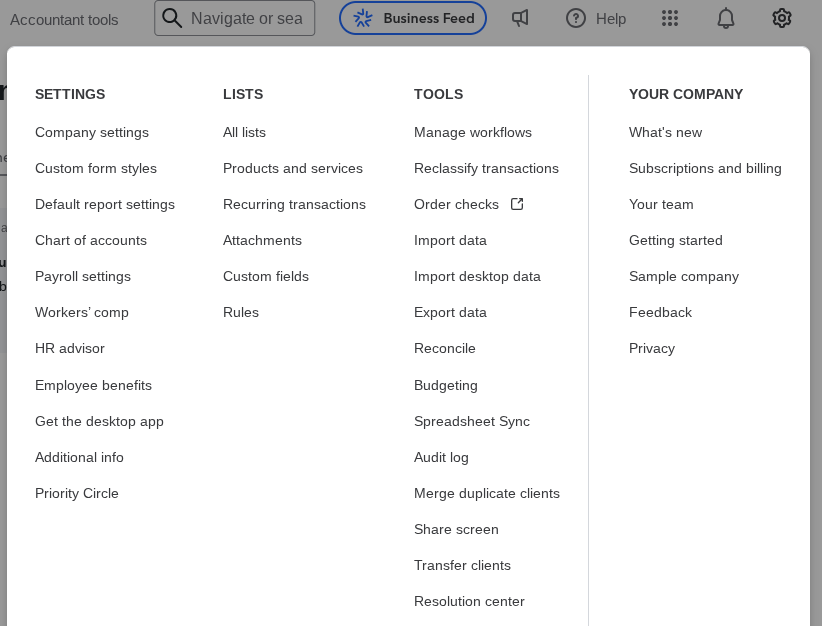
Click on that and:
- Manage your subscriptions
- Adjust your company settings
- Customize invoices and receipts
- Modify your reports
There are many other interesting features here. All that may benefit you as a business.
Manage Your QBO Dashboard
If you do not like the way some QBO features look, you are in luck.
You can rearrange your dashboard to put things like:
- Tasks
- Bank feeds
- Income vs expenses
On top.
This way, the other tabs don’t distract you from your workflow.
Turn Bookmarking Into a Strategic Plan
Next to each tab in the sidebar, you can click to add it to your bookmarks.
Here are some recommendations to add:
- Bank Reconciliation
- Chart of Accounts
- Reports
- Expenses
- Revenue
- Bank Transactions
Bookmarking makes it much easier to find your favorite or go to tabs.
Set Things Your Way With Preferences
You can modify your account via the gear icon under settings.
Here you can do several things, like:
- Automate invoices
- Set up payment preferences
- Track your expenses
- Choose sales form preferences
- Use advanced accounting settings
Here are a few examples of how using settings properly can benefit you.
- If you do cash vs accrual basis, you can set the preferences to fit your reports.
- You can customize invoices and receipts to look professional
The Good, the Bad, and the Ugly of QBO
Like all good things, there are always downsides. But mostly we weigh the positives.
So let’s start with the things that make QBO worth the hassle.
- QBO syncs with your bank
- Reports are much clearer
- It grows with your business
- You can customize your preferences
- Tracking is a breeze
Yet there are things about QBO that can really cause us to pull our hair out.

So here are the bad and ugly of using QBO.
- Subscriptions can become costly
- Numbers can be easily mistranslated
- Can be confusing to navigate
- Messy books make QBO much more complicated
QBO can automate tasks and make all your financial needs much simpler.
It is not a replacement for human understanding.
Using the Dashboard Strategically
Most of the time, you will not be using everything in QBO.
That being said, I will go over what you will use.
Starting with weekly tasks in QBO:
- Review transactions
- Check the unpaid income and expenses
- Monitor your balances
- Analyze your profits
After your month is up, it’s time to check your monthly balances.
Here’s what to do at the end of the month.
- Reconcile transactions
- Compare it to last month
- Get rid of unnecessary transactions
- See what services perform best
Lastly, you want to check every quarter for an overall view of business performance.
These are things you decide:
- Are you profitable or wasting time
- Can you afford marketing
- Is it time to delegate tasks
Knowing how QBO works can help you better understand ways to make your business more profitable.
Things Businesses Should Avoid Like the Plague
Many mistakes can be made using QBO.
It’s important to understand these common pitfalls a creative can fall into.
Here are a few things creators should avoid when using QBO.
- Using the wrong subscription
- Thinking that revenue and income are the same
- Ignoring bank transaction errors
- Not using bookmarks as shortcuts
- Not reviewing important details, logging in
- Failing to customize settings
These things are not rocket science. But they can help you with clarifying how you use your QBO dashboard.
QBO Can be a Helpful Tool if Used Right
QBO is not just another software your business uses. It is the lifeblood of your finances.
It reflects everything you put into the business.
Messy books are no fun for any creative.
Clean books can make running a business less stressful.
You might have millions of followers. But without keeping track of your finances, your profits are lost in the chaos.
If you feel you need help understanding your book on QBO, it might not hurt to hire a bookkeeper.
Hire someone who gets your finances, not just any bookkeeper. That bookkeeper also has to have a strong understanding of QBO.
An expert can help you turn your dashboard into a strategic business tool.
Your financial growth is the most important thing you can invest in.
Don’t keep guessing your finances are okay. Get a second opinion about your books today.