

Let’s imagine you needed to find a spoon. How would you find that spoon if you didn’t label your kitchen cabinets?
The same is true of your finances. That’s why many bookkeepers use a system called a Chart of Accounts (COA).
If you are using QuickBooks Online (QBO), then it is important to understand how to access your COA and how to use it.
When you use your COA properly, finding a transaction is less frustrating. Your reporting will be much clearer.
In this post, I will explore:
- Accessing your COA in QBO
- Adding accounts both manually and via spreadsheets
- Where to add account numbers
- What do things like account types and details mean
- How to create a subaccount
- Why the COA matters in your business
Let’s get started!
Organize your finances with a COA
For anyone with a filing system, we all know how much easier this is. That is versus guessing where everything might be.
If you have a COA, then it is much easier to find things like expenses and assets, or, to be more detailed, shipping supplies.
With QBO, it is much easier to customize a COA than ever before. You can create a list that fits your business needs.
Accessing your COA in QBO
So, how do you find the COA in QBO?
Once you access the QBO dashboard, it is pretty straightforward.
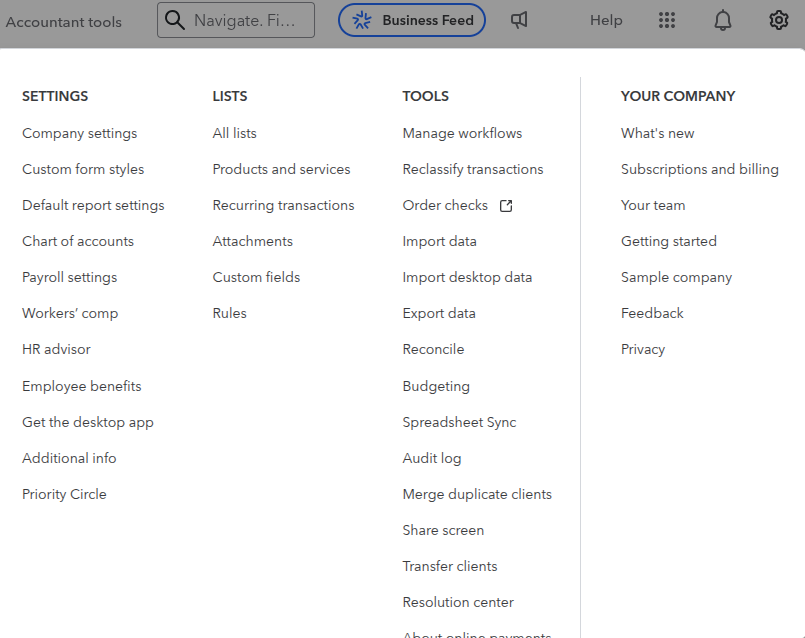
- Click either the bank transactions menu or the gear icon
- Select the Chart of Accounts
- If you click the gear icon, look for company settings
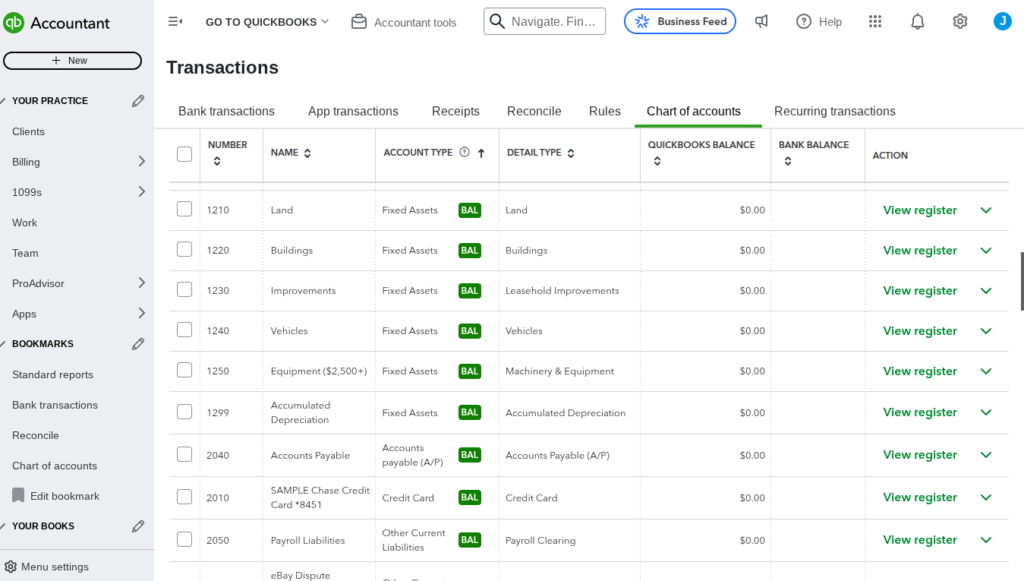
Once on that page, you’ll see a list of accounts.
These accounts will show things like…
- Account name
- Account type
- Detail type
- QBO Balance
- Bank balance
- Account number (if enabled)
The COA page is where you can edit or make accounts inactive.
Time to add accounts to the COA
QBO has made adding accounts simple.
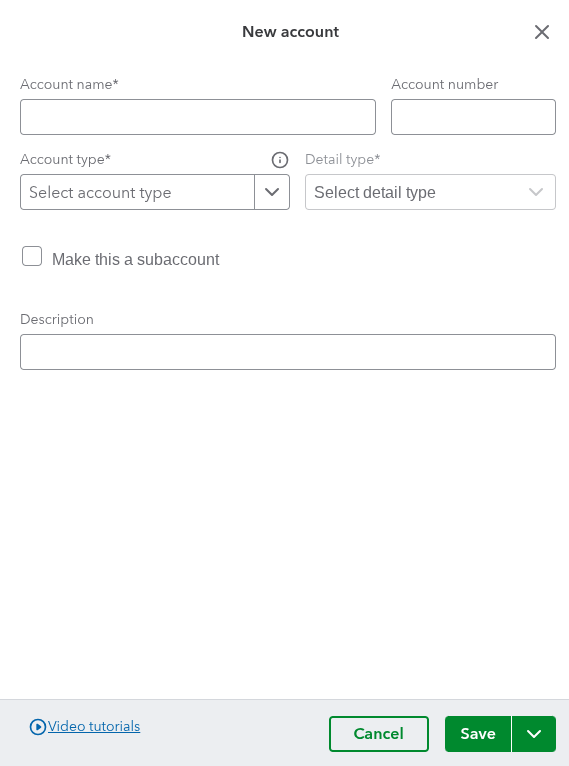
Here is a step-by-step process:
- Click either the bank transactions menu or the gear icon
- Access the new button at the top right
- Enter the account name
- Choose the detail and account type
- If enabled, add an account number
- Then hit save
Simple, right?
The more complicated part is knowing which accounts to add to your COA.
It is crucial that you know if an account will help make your transactions clearer.
Or if it will just clutter your COA.
Importing a list of accounts with a spreadsheet
Adding accounts one by one can be a hassle. And it is also time-consuming.
Using Excel spreadsheets via Google can load your results much faster. Versus going in and adding each one manually in QBO.
Here’s how you can import your sheets to QBO.
Preparing your spreadsheet
A spreadsheet needs to contain columns and the proper values.
Inaccurate formatting can lead to rejection from QBO. Or it can be difficult to process the docs.
Here are the columns your CSV files need to have.
- Account names
- Account types
- Detail types
- Account numbers
- Description (optional)
It is important to know which details and account types match the QBO software.
Importing a spreadsheet into QBO
Now for the good part.
Adding your COA to QBO.
Here’s how:
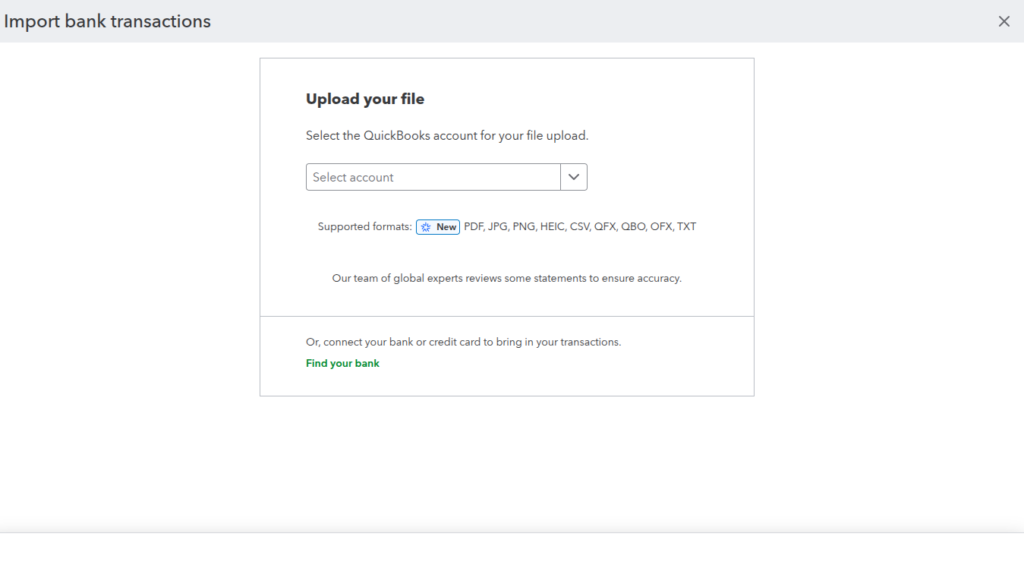
- Go to settings via tools
- Select import data
- Under the import bar, scroll to select Chart of Accounts
- Upload your CSV file using the browse button to access
- Make sure everything is correct
- Review and confirm your imported document
This works especially well if you are an accountant or bookkeeper working with a variety of clients.
Adding numbers to your accounts in QBO
Account numbers may not be enabled. To turn them on…
- Go to the gear icon
- Access the company settings
- Click on advanced
- Under the Chart of Accounts section, turn on “Enable Account Numbers.”
- Save changes
Once this is set up, you can add account numbers to your COA.
Are account numbers a big deal?
Yes, absolutely! They provide your accounts with structure. This will make them more organized.
Below is an example of account numbers most businesses use.
- 1000 – 1999: Assets
- 2000 – 2999: Liabilities
- 3000 – 3999: Equity
- 4000 – 4999: Income
- 5000 – 5999: Cost of Goods Sold
- 6000 – 6999: Expenses
As your business grows, your system of numbering may change. Regardless, numbering your accounts helps maintain consistency.
With clear numbering for all your accounts, interpreting financial data is much easier.
Explaining account & detail types
While the account name is straightforward, some may find this part a bit confusing. So, what is a detail or account type?
Account types explained
Your account type is the name that will appear in your financial statements.
I will provide some examples of account types below.
- Assets
- Liabilities
- Equity
- Income
- Cost of Goods Sold
- Expenses
- Other Income
- Other Expenses
The selection you assign account names to will impact both the balance sheet and the profit & loss statement.
Detail types explained
This provides your accounts with a more specific classification. Doing so will provide your report with more precision.
Here are some examples below.
- Account Type Expenses
- Detail Type: Ads & promotions
- Detail Type: Office supplies
- Detail Type: Rent
- Account Type Profits
- Detail Type: Accounts receivable
- Detail Type: Inventory
- Detail Type: Undeposited funds
Here’s how to think of both your account and detail types. Account types are how your finances will be categorized in your reports.
Detail types are a subcategory of your reports.
Choosing these two will heavily impact the consistency of your reports. It is important to ask which type of account or detail fits your business needs.
Adding subaccounts in QBO
In bookkeeping, it is good practice to label your numbers like this…
- 1010
- 1020
- 1030
- And on and on
This leaves room for you to create a sub account in between later on.
Let me show you an example of how this works.
Account Name:
- Office
Subaccounts:
- Postage & shipping
- Printing
- Supplies
When accessing your reports, you can expand them to see more details concerning your subaccounts.
It is important not to overdo it on your subaccounts. Sometimes it is better to put one subaccount into another.
How can you add a subaccount?
Since you are already familiar with accessing your COA in QBO… This part shouldn’t be too hard.
In case you forgot how to get there, here is a refresher. That and how to add a subaccount.
- Access COA via the gear icon
- Or in the dashboard under transactions
- Click on new account
- Enter the account name
- Enter both the account and the detail type
- Check the box to create a subaccount
- Select the parent account you want this associated with
- Finally, save and close
Pretty simple.
Subaccounts can be beneficial for more efficient tracking of certain accounts.
Here’s how they can benefit your business.
- Tracking departments
- Managing multiple revenue streams
- Break down expense categories
- Organize loan balances
Again, overcomplicating your COA with several accounts can be a problem. It’s important to use a subaccount wisely.
How to best use your COA
QuickBooks Online can offer a solid structure for formatting a chart of accounts.
But it cannot tell you the best practices.
Below are some guidelines for creating an effective COA.
Keep it simple
Avoid creating too many accounts, specifically accounts for one-time transactions.
Make it timeless
Your COA still needs to work when your business scales.
Give it purpose
The accounts you create need to make sense and to fit your business structure.
Be consistent
Use numbers to guide your decisions when recording your transactions into the COA.
If you decide to hire a bookkeeper to do your finances, it is important to communicate your structure.
Not following the right guidelines of a COA can have disastrous results.
Why creating a COA matters for businesses
Your COA is not just a list of numbers and accounts. It determines where your finances will show up in reports.
Here is what a well-structured COA looks like.
- Profit and loss statements will be accurate
- The balance sheet will be more reliable
- Profitability is more easily tracked by category
- Cash flow can be monitored properly
- Tax season will be a breeze
- Makes for easier data-driven decisions
Imagine not having a system. How can you find or track certain transactions? Unorganized finances lead to confusion in your books.
Here are some issues that you will face with a poorly structured COA.
- Bad reports
- Confusing transactions
- Poor business decisions
- A stressful tax season
Now you can see how the COA affects your overall business structure. It is a sort of communication letting lenders, bankers, accountants, and you know how your transactions are working for or against you.
Summarizing the COA
You now know a COA is more than just a simple task. It is also a strategic one that can determine your financial decisions.
You now know how to…
- Find your COA in QBO
- Add accounts in QBO
- Import Excel spreadsheets to QBO
- Assign numbers to the correct accounts in QBO
- Distinguish between account and detail type in QBO
- Create subaccounts in QBO
Knowing this will empower you to create a well-organized system.
If you set up your COA the right way, it will provide you with meaningful financial insights. Having clarity leads to better overall decision-making.
You know how to treat your COA like you would an infant. Nurture it while it grows into a well-refined structure.
That way, your reports accurately reflect a realistic picture of your finances. Good bookkeeping is not just administrative work; it is strategic work.